 Jonathan Blake

I run HighLevel every day for home service clients at The Lead Venture, and the question I started getting this year wasn’t “what’s Voice AI” anymore, it was “can I just point Claude at my HighLevel account.” As of late 2026, the answer is yes: HighLevel runs its own MCP server, and connecting it is a setting, not a coding project.
This post sticks to what HighLevel’s own documentation confirms. If a step or detail isn’t nailed down on their docs page, I’m not going to invent it here.
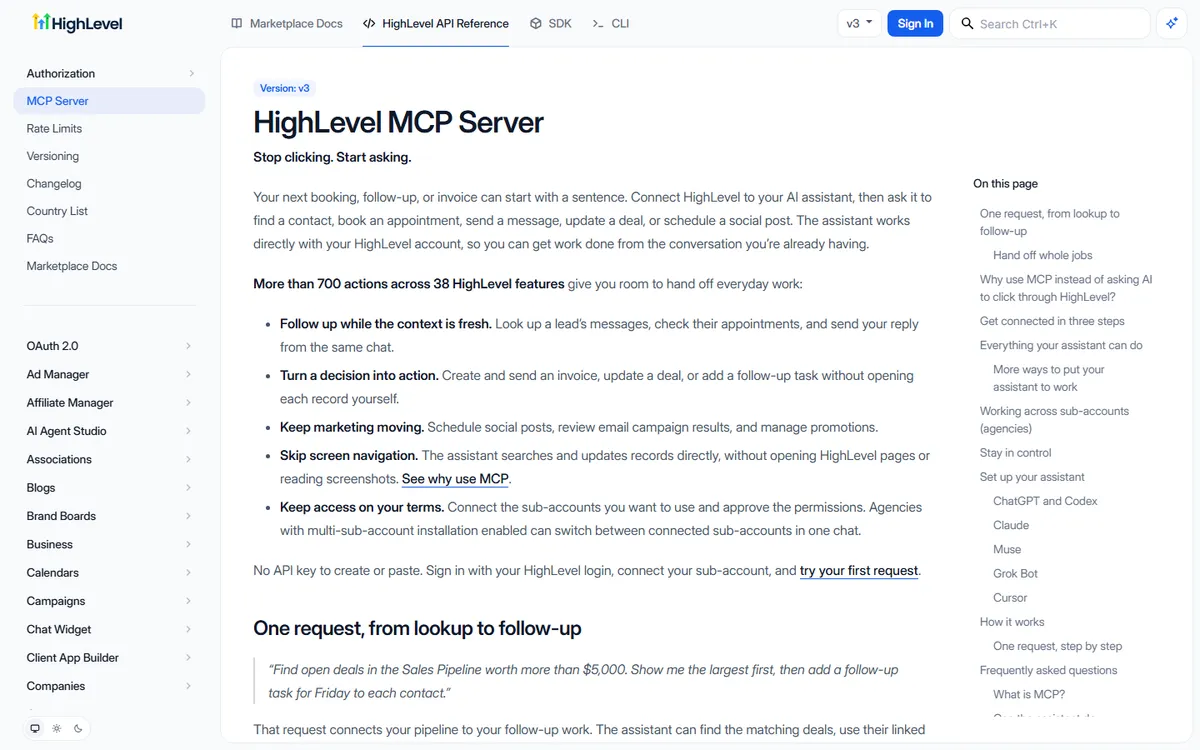 HighLevel’s MCP Server documentation, November 2026.
What MCP actually is, in plain English
MCP stands for Model Context Protocol, an open standard for letting an AI assistant connect to an outside tool: it reads what that tool can do, and runs actions inside the permissions you’ve granted. MCP doesn’t give HighLevel a new AI feature. It gives your AI assistant a way into the account you already have.
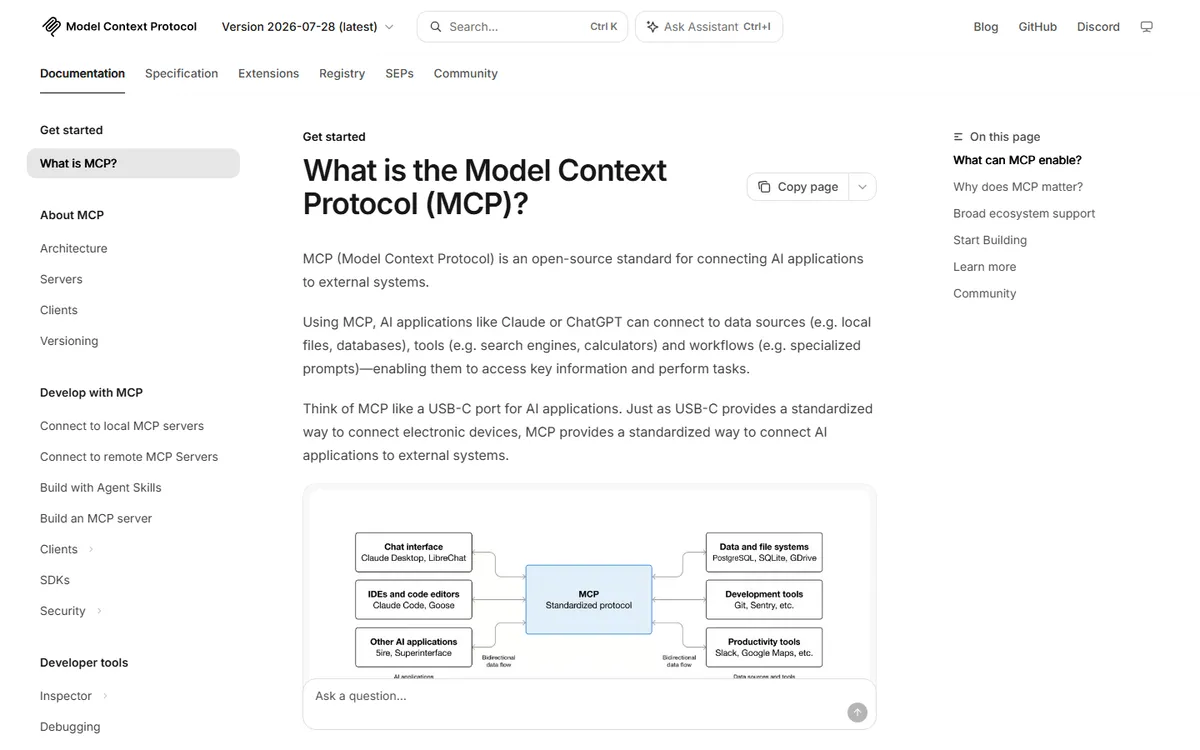 The official Model Context Protocol docs, which describe MCP as a standard way to connect AI apps to outside systems, November 2026.
HighLevel publishes its MCP server on its own marketplace docs site, and it connects through two different endpoints depending on which assistant you’re using:
- Claude connects at
https://services.leadconnectorhq.com/mcp/anthropic/v2 - ChatGPT and other OpenAI-compatible clients connect at
https://services.leadconnectorhq.com/mcp/openai/v2/
Claude
- Endpoint: services.leadconnectorhq.com/mcp/anthropic/v2
- Setup: Settings, Connectors, Add custom connector
- Auth: OAuth only
ChatGPT
- Endpoint: services.leadconnectorhq.com/mcp/openai/v2/
- Setup: Its own custom-connector flow
- Auth: OAuth only
How authentication works
Per HighLevel’s own docs, LeadConnector MCP connections use OAuth exclusively. When you connect, your AI client opens HighLevel’s sign-in and consent flow: you log in, pick the sub-account (or accounts) you’re granting access to, and approve the specific scopes the connection is asking for. There’s no Private Integration Token to generate or paste in for an MCP connection; the OAuth flow handles it.
Every operation still runs inside your OAuth scopes. Connecting an AI assistant doesn’t hand it more access than you approved. If you only approve read access to contacts, that’s all it can do, regardless of what you ask it.
Start your free HighLevel trial 30-day trial · cancel anytime · keep the bonuses I may earn a commission if you sign up through my link, at no extra cost to you. DetailsWhat it can actually do: four tools, not 700 menu items
Rather than exposing hundreds of individual API endpoints directly, HighLevel’s MCP server is built around four tools that the AI assistant uses together:
list_locations: lists the sub-accounts you have access to, or returns the single one you’re bound to.search_operations: finds the right action for what you’re trying to do (a record search, a read, a create, an update, a delete) by describing your intent rather than naming an exact endpoint.describe_operation: looks up exactly what an operation needs, its inputs, required scopes and anything it should warn you about before running.execute_operation: actually runs the operation, subject to your OAuth scopes and HighLevel’s own safety checks.
| Tool | What it does |
|---|---|
list_locations |
Lists the sub-accounts you have access to |
search_operations |
Finds the right action from a description of your intent |
describe_operation |
Shows inputs, required scopes and warnings before running |
execute_operation |
Runs the operation, subject to your OAuth scopes and safety checks |
Behind those four tools sits a catalog HighLevel describes as more than 700 actions across 38 features, covering contacts, conversations, opportunities, payments, workflows and more. The AI assistant searches that catalog instead of you needing to know the exact API call for every action.
Connecting Claude
Per HighLevel’s documentation, the steps are:
- In Claude, open Settings → Connectors → Add custom connector.
- Enter the server URL:
https://services.leadconnectorhq.com/mcp/anthropic/v2. - Click Connect and complete HighLevel’s sign-in flow: authenticate, select the sub-account (or accounts), and approve the requested scopes.
- Start a new chat to use the connection.
Connecting ChatGPT
Per the same documentation, ChatGPT connects at a different URL (https://services.leadconnectorhq.com/mcp/openai/v2/) through its own custom-connector flow, with the same kind of HighLevel sign-in, sub-account selection and scope approval. Where exactly that setting lives inside ChatGPT’s interface is the part most likely to move as OpenAI updates its own product, so check HighLevel’s current docs rather than a screenshot from an older post, including this one, before you go looking for the menu.
Where this actually helps, day to day
The honest use case for most agency owners isn’t “replace a HighLevel feature with AI.” It’s removing the copy-paste step between your HighLevel account and whatever AI assistant you already think with. A few real examples of what that looks like once it’s connected:
- Asking your assistant to pull up a specific contact or recent conversation without opening HighLevel first.
- Having it draft a summary of a pipeline’s current state from the real data, instead of you exporting a report.
- Running a quick lookup across contacts or opportunities while you’re mid-conversation with a client, in the same window you’re already working in.
This is also where the rest of an AI-leaning agency’s tooling fits in. I built the Harvey System to find and work cold outreach the same way, on a Claude or ChatGPT subscription instead of a separate API bill, and the Bulk Demo Generator to audit prospects and spin up demo sites in batches rather than one at a time. MCP is the same instinct applied to the account you already run every client through: fewer tabs, fewer exports, more of the account reachable from wherever you’re already asking questions.
Quick wins
Want clients this month? Start here
Set up your own house first. One clear offer for one niche, a simple site, a booking link and your own HighLevel account running the same automations you'll sell. Prospects trust what they can try.
Start with people who already know you
Past employers, old customers, friends who own businesses. Tell them exactly what you set up for agency owners using AI tools and ask for 20 minutes.
Do daily outreach
Calls, emails and DMs to a tight list in one niche. Volume and follow-up beat clever copy.
Demo, don't describe
Build a quick AI agent or missed-call text-back demo in your own HighLevel account and let them try it on the call.
Post what you build
Short screen recordings of real automations. One a day on the platform your buyers use.
Partner with people who own your buyers
Web designers, bookkeepers and software resellers already have the relationship. Trade introductions.
Answer every lead in under a minute
Practice what you sell. Set up your own speed-to-lead automation first.
Work a local area in person
- Pick one area and walk into ten businesses in a row. Ask for the owner, keep it to two minutes and leave a card.
- Bring a one-page printout that shows the problem you fix (missed calls, slow follow-up, no reviews) with their name on it.
- Go back a week later. Most first visits are about being remembered, not closing.
Ask for introductions, not referrals
"Know anyone who could use this?" gets a polite "I'll think about it." Asking to be introduced to a specific kind of person gets names. Set it up when they sign:
"If this works the way I think it will, would you be against introducing me to one or two other agency owners using AI tools you know? I'll give them a a free 15-minute AI-stack review."
Then follow up once they're seeing results. With a client you get along with, a little humor works:
"So are you keeping me a secret on purpose, or do you just not like your friends?"
Only joke like that with clients you know well. With everyone else, keep it simple and thank them either way.
A word on scopes and what I’d approve first
The scope screen is the part worth slowing down for, not clicking through. HighLevel’s OAuth consent flow lists exactly what you’re granting: which sub-account, and which categories of data and actions. I’d start narrow on purpose:
- Read access to contacts and conversations first. That covers most of the “look something up for me” use cases with the least exposure.
- Add write access (creating or updating records) only once you’ve watched the assistant work for a while and trust what it does with a request.
- Keep payment and billing scopes off unless you have a specific, tested reason to grant them. There’s no reason an assistant answering lookup questions needs access to that.
Connecting an AI assistant to HighLevel
Pros
- Fewer tabs and fewer exports
- OAuth only, scoped to what you approve
- Look things up from the window you're already working in
Cons
- New enough that endpoints and menus can change
- Write access is worth earning slowly
- Not a replacement for Conversation AI or Voice AI
This isn’t a HighLevel-specific caution. It’s the same rule I’d give anyone connecting any AI assistant to any system that holds real client data: grant what the task needs, not what’s convenient to grant once and forget about.
What to verify before you rely on this
MCP is new enough, as of late 2026, that I’d treat anything beyond the four tools and two endpoints above as subject to change. Before you build a workflow around it:
- Confirm the current endpoint URLs on HighLevel’s own MCP docs, since this is exactly the kind of thing vendors move without much notice.
- Start with read-only scopes while you get a feel for what the assistant actually does with access, then widen scopes deliberately.
- Test in a sub-account you don’t mind experimenting in before you connect a live client account.
If you’re building an AI-leaning agency from scratch rather than adding this to one you already run, I lay out the bigger picture in how to start an AI agency. If you haven’t set up the rest of your HighLevel account yet, start with my full GoHighLevel review and the pricing breakdown before layering AI connections on top of it.
Bottom line
GoHighLevel’s MCP server is a real, documented way to put your AI assistant inside the account you already run, not a rumor or a third-party workaround. It’s OAuth-only, built around four tools instead of hundreds of raw endpoints, and scoped to exactly what you approve. Start the 30-day extended free trial through my link if you don’t have an account to test this in yet, or book a call if you want help wiring AI tools into an account you already run.
Start your free HighLevel trial 30-day trial · cancel anytime · keep the bonuses I may earn a commission if you sign up through my link, at no extra cost to you. Details